Rummy Safety: Limit App Access to Essential Permissions
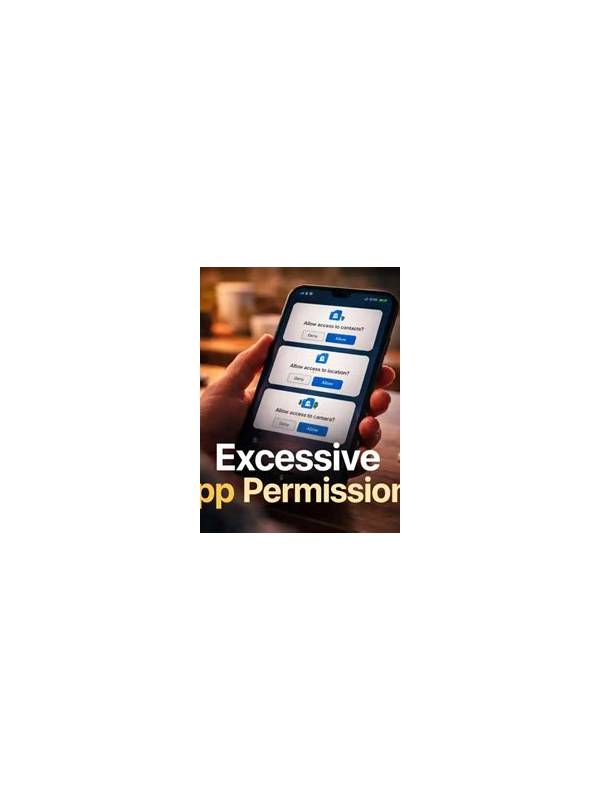
Before using any rummy app, take a moment to review the permissions it requests. Permissions control what an app can access on your device, such as notifications, contacts, storage, camera, microphone, or location. A permission may have a legitimate purpose, but a game should not automatically receive access to information unrelated to its basic functions.
Start with the app’s permission page in your device settings rather than relying only on an installation prompt. Read each permission in plain language. Storage access may be used for saved settings or downloaded resources, while notification access may support turn reminders. Contacts, microphone, camera, and precise location deserve closer attention unless the app clearly explains why they are needed.
Use the least access that still lets the app work. Many devices allow you to deny a permission, allow it only while the app is open, or ask every time. Choose the narrowest option that matches your needs. If a game refuses to function without an unrelated permission, treat that as a reason to pause and verify the app’s source and privacy policy.
Review permissions after updates. An update can add features, change settings, or request new access. This does not prove that the app is unsafe, but it is a useful prompt to read the changes. Also check whether the app remains installed if you have stopped using it. Removing unused apps reduces the amount of software that can access your device over time.
Protect the account separately from the device. Use a unique password, enable available account security features, and avoid saving sensitive payment information on a shared phone. Do not enter credentials into links received through unexpected messages. An app permission review is one layer of safety, not a replacement for checking the developer, download source, and account activity.
The best routine is simple: install from a trusted source, read permissions, deny unnecessary access, and revisit the list after major updates. These steps take little time and help keep a casual game session from exposing more personal information than necessary.
If you are unsure about a permission, search the device settings for its explanation and check the developer’s published privacy information through a trusted channel. Do not trust a pop-up that uses urgency to demand access. You can also review recent permission use where the operating system provides that feature. Unexpected access patterns are a reason to pause, remove access, or uninstall and investigate before returning.
If you are unsure about a permission, search the device settings for its explanation and check the developer’s published privacy information through a trusted channel. Do not trust a pop-up that uses urgency to demand access. You can also review recent permission use where the operating system provides that feature. Unexpected access patterns are a reason to pause, remove access, or uninstall and investigate before returning.